Add your teamअपनी टीम जोड़िए
Invite teammates, pick their roles, group them into departments and route chats by topic.
साथियों को इनवाइट कीजिए, रोल चुनिए, डिपार्टमेंट्स बनाइए और टॉपिक के हिसाब से चैट रूट कीजिए।

Transcript
0:00Welcome
Welcome to NxAi tutorials! In this episode, you'll bring your team into NxAi, give everyone the right role, and decide who handles which chats.
0:12What you'll do
We'll invite a teammate, look at the roles, add a department, and set up chat topics and routing.
0:20Team members & seats
Open Settings, then Team members. At the top, you see how many seats your plan includes. Below is everyone in your workspace, with their role, department, chat topics and status.
0:35Invite a teammate & roles
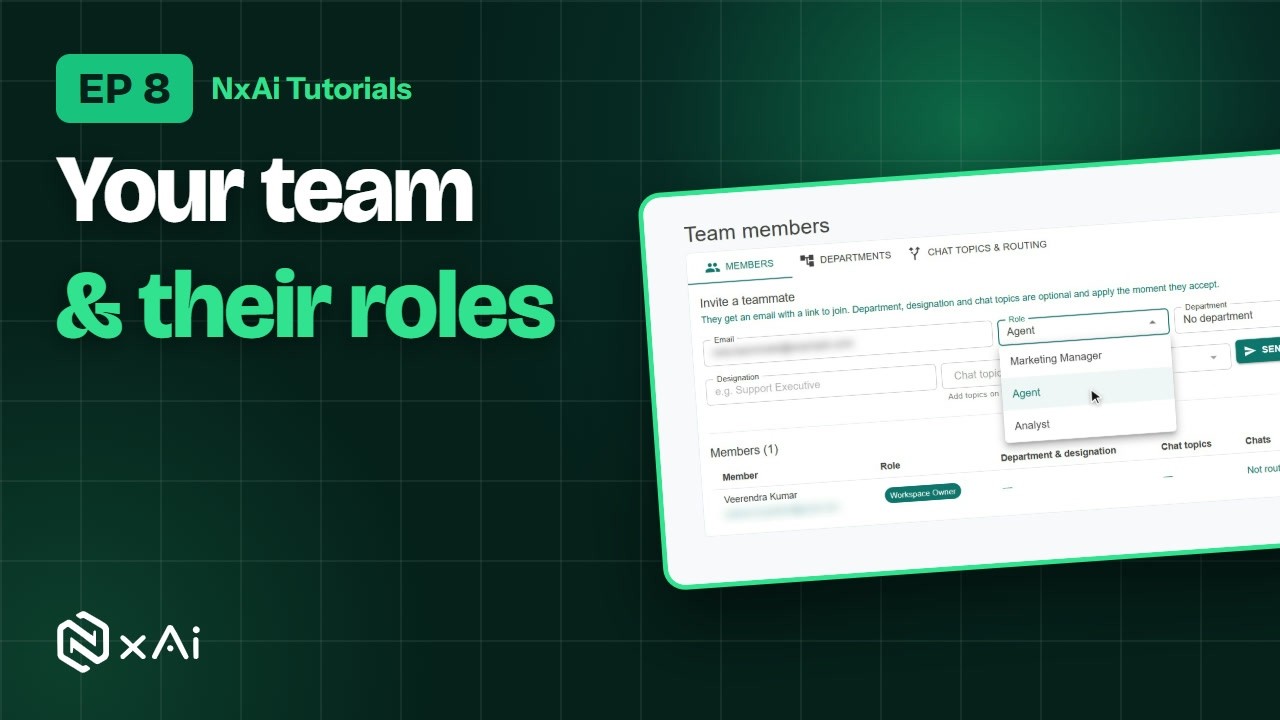
To invite someone, enter their email and choose a role. An Agent works in the inbox, chatting with customers. A Marketing Manager also runs campaigns, templates and contacts. An Analyst can view reports. Click Send invite, and they get an email with a link to join.
0:56Departments
On the Departments tab, group your team the way your business works, like Customer Care, Sales or Accounts. Click Add department, give it a name, and add it.
1:11Chat topics
On Chat topics and routing, list the kinds of chats your team handles. Start with the suggested set: Sales, Support, Billing and payments, Orders and delivery, and General enquiry. You can edit them to your own words.
1:28How hand-over routing works
When the AI agent can't help a customer, NxAi works out the chat's topic, and hands it to an available teammate who takes that topic, preferring the one who helped that customer before. Choose your routing options, and click Save routing.
1:46Give teammates their topics
Finally, give each teammate their department, designation and chat topics. Back on the Members tab, click the edit button next to their name, choose them, and save.
1:58Next episode
In the next episode, we'll open the team inbox and chat with customers. If this video helped, subscribe, and see you in the next one!
ट्रांसक्रिप्ट
0:00स्वागत
NxAi ट्यूटोरियल्स में आपका स्वागत है! इस एपिसोड में आप अपनी टीम को NxAi में जोड़ेंगे, सबको सही रोल देंगे, और तय करेंगे कि कौन-सी चैट्स कौन संभालेगा।
0:14इस एपिसोड में
हम एक साथी को इनवाइट करेंगे, रोल्स देखेंगे, एक डिपार्टमेंट जोड़ेंगे, और चैट टॉपिक्स और रूटिंग सेट करेंगे।
0:22टीम मेंबर्स और सीट्स
Settings में Team members खोलिए। सबसे ऊपर दिखता है कि आपके प्लान में कितनी सीट्स हैं। नीचे आपके वर्कस्पेस के सब लोग हैं, उनके रोल, डिपार्टमेंट, चैट टॉपिक्स और स्टेटस के साथ।
0:38साथी को इनवाइट और रोल्स
किसी को इनवाइट करने के लिए उनका ईमेल डालिए और रोल चुनिए। Agent इनबॉक्स में कस्टमर्स से चैट करता है। Marketing Manager कैंपेन, टेम्पलेट्स और कॉन्टैक्ट्स भी संभालता है। Analyst रिपोर्ट्स देख सकता है। Send invite पर क्लिक कीजिए, और उन्हें जुड़ने का लिंक ईमेल पर मिल जाएगा।
1:00डिपार्टमेंट्स
Departments टैब पर अपनी टीम को अपने बिज़नेस के हिसाब से ग्रुप कीजिए, जैसे कस्टमर केयर, सेल्स या अकाउंट्स। Add department पर क्लिक कीजिए, नाम दीजिए, और उसे जोड़ दीजिए।
1:15चैट टॉपिक्स
Chat topics and routing पर उन चैट्स की लिस्ट बनाइए जो आपकी टीम संभालती है। सुझाए गए टॉपिक्स से शुरू कीजिए: सेल्स, सपोर्ट, बिलिंग और पेमेंट्स, ऑर्डर्स और डिलीवरी, और जनरल इन्क्वायरी। आप इन्हें अपने शब्दों में बदल भी सकते हैं।
1:35चैट रूटिंग कैसे काम करती है
जब AI एजेंट किसी कस्टमर की मदद नहीं कर पाता, तो NxAi चैट का टॉपिक पहचानता है, और उसे ऐसे उपलब्ध साथी को सौंपता है जो वह टॉपिक संभालता है, और पहले उसी साथी को प्राथमिकता देता है जिसने उस कस्टमर की मदद की थी। अपने रूटिंग विकल्प चुनिए, और Save routing पर क्लिक कीजिए।
1:57साथियों को टॉपिक्स दीजिए
आख़िर में, हर साथी को उसका डिपार्टमेंट, डेज़िग्नेशन और चैट टॉपिक्स दीजिए। Members टैब पर उनके नाम के आगे एडिट बटन पर क्लिक कीजिए, ये चुनिए, और सेव कीजिए।
2:10अगला एपिसोड
अगले एपिसोड में हम टीम इनबॉक्स खोलेंगे और कस्टमर्स से चैट करेंगे। अगर यह वीडियो काम का लगा, तो चैनल सब्सक्राइब कीजिए, मिलते हैं अगले एपिसोड में!

Ready to try it on your own number?
Start free and follow along. We help you set up the first bot, template and campaign.
3 months free · No credit card required · Free onboarding