
Contact groups & custom fieldsकॉन्टैक्ट ग्रुप्स और कस्टम फ़ील्ड्स
Create your own fields and build groups that update themselves, ready for campaigns and follow-ups.
अपने फ़ील्ड्स बनाइए और ऐसे ग्रुप्स बनाइए जो ख़ुद अपडेट होते हैं, कैंपेन और फ़ॉलो अप के लिए तैयार।

Transcript
0:00Welcome
Welcome to NxAi tutorials! In this episode, you'll organise your contacts with custom fields and groups, so the right message reaches the right people.
0:11What you'll do
We'll create a custom field, fill it in on a contact, build a group that keeps itself up to date, and see where you use it.
0:21Contact fields
Under Contacts, open Contact fields. These are extra details you keep on every contact, beyond name, number and email, like city, plan or a renewal date. You'll see them on each contact, use them to build groups, and put them into your messages.
0:39Create a field
Click New field. Give it a name, like City, and choose its type: text, number, date, or yes or no. The key is filled in for you, and can't change later. Click Save.
0:55Fill it in on a contact
Now every contact has a City field. Edit a contact, fill it in, and save. When you import a CSV file, you can map a column straight into it.
1:08Create a contact group
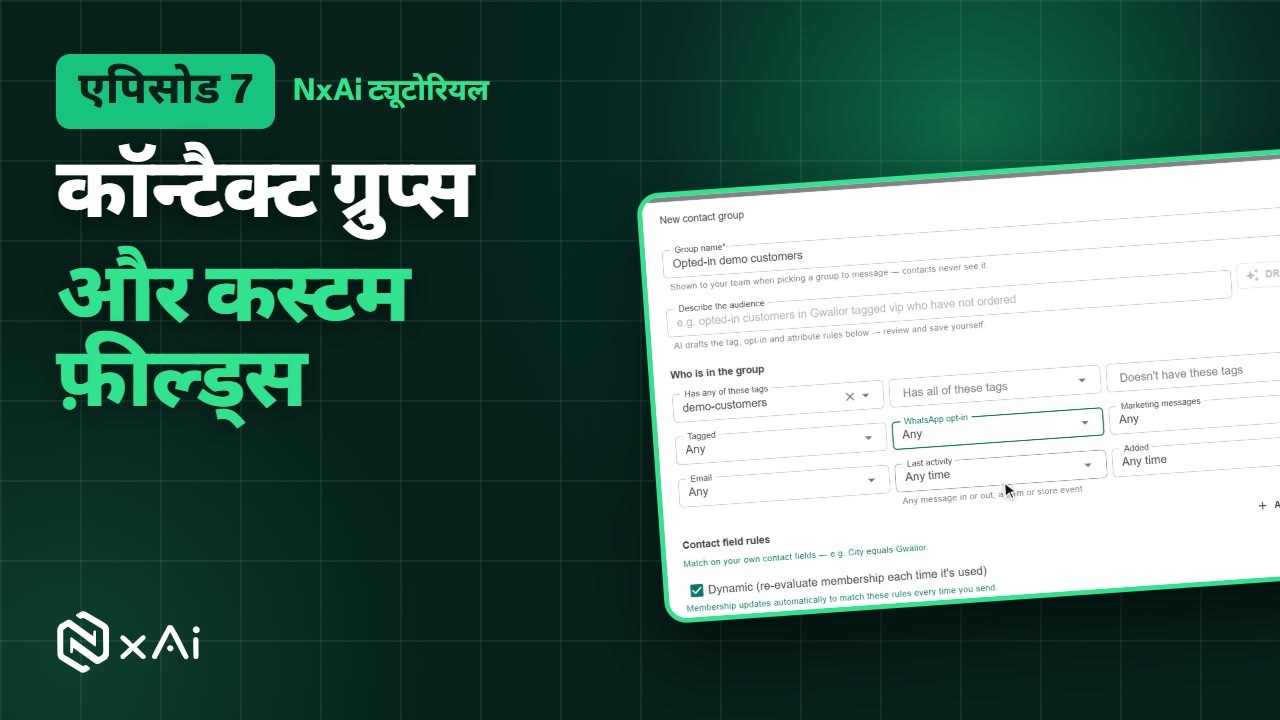
Next, groups. Open Contact groups, and click New group. Give it a name your team will recognise. Then choose who's in it: by tags, WhatsApp opt-in, marketing status, last activity, when they were added, or your own contact fields.
1:28Rules & dynamic groups
For example, everyone tagged demo customers who has opted in. Keep Dynamic on, so the group updates itself every time you send, and new people who match join automatically. Refresh the count, and click Save.
1:46Use your group
Your group now appears in the list, with its rules. Open it to see who's in it. You'll pick groups like this when you send a campaign or start an auto follow-up.
2:00Next episode
In the next episode, we'll invite your team and set up their roles. If this video helped, subscribe, and see you in the next one!
ट्रांसक्रिप्ट
0:00स्वागत
NxAi ट्यूटोरियल्स में आपका स्वागत है! इस एपिसोड में आप कस्टम फ़ील्ड्स और ग्रुप्स से अपने कॉन्टैक्ट्स व्यवस्थित करेंगे, ताकि सही मैसेज सही लोगों तक पहुँचे।
0:13इस एपिसोड में
हम एक कस्टम फ़ील्ड बनाएँगे, उसे एक कॉन्टैक्ट पर भरेंगे, एक ऐसा ग्रुप बनाएँगे जो ख़ुद अपडेट होता रहे, और देखेंगे कि इसे कहाँ इस्तेमाल करते हैं।
0:25कॉन्टैक्ट फ़ील्ड्स
Contacts में Contact fields खोलिए। ये वे अतिरिक्त डिटेल्स हैं जो आप हर कॉन्टैक्ट पर रखते हैं, नाम, नंबर और ईमेल के अलावा, जैसे शहर, प्लान या रिन्यूअल डेट। ये हर कॉन्टैक्ट पर दिखती हैं, इनसे ग्रुप बनते हैं, और इन्हें आप अपने मैसेज में भी डाल सकते हैं।
0:44फ़ील्ड बनाइए
New field पर क्लिक कीजिए। उसे एक नाम दीजिए, जैसे City, और उसका टाइप चुनिए: टेक्स्ट, नंबर, तारीख़, या हाँ या ना। Key अपने आप भर जाती है, और बाद में बदली नहीं जा सकती। Save पर क्लिक कीजिए।
1:01कॉन्टैक्ट पर भरिए
अब हर कॉन्टैक्ट पर City फ़ील्ड है। किसी कॉन्टैक्ट को एडिट कीजिए, उसे भरिए, और सेव कीजिए। CSV फ़ाइल इम्पोर्ट करते समय आप किसी कॉलम को सीधे इसमें मैप कर सकते हैं।
1:15कॉन्टैक्ट ग्रुप बनाइए
अब ग्रुप्स। Contact groups खोलिए, और New group पर क्लिक कीजिए। ऐसा नाम दीजिए जिसे आपकी टीम पहचान सके। फिर चुनिए कि इसमें कौन होगा: टैग्स, WhatsApp ऑप्ट इन, मार्केटिंग स्टेटस, आख़िरी ऐक्टिविटी, कब जोड़े गए, या आपके अपने कॉन्टैक्ट फ़ील्ड्स के हिसाब से।
1:35नियम और Dynamic ग्रुप
जैसे, वे सब जिन पर demo customers टैग है और जिन्होंने ऑप्ट इन किया है। Dynamic चालू रखिए, ताकि हर बार भेजते समय ग्रुप ख़ुद अपडेट हो जाए, और जो नए लोग मेल खाते हैं वे अपने आप जुड़ जाएँ। काउंट रिफ़्रेश कीजिए, और Save पर क्लिक कीजिए।
1:55अपना ग्रुप इस्तेमाल कीजिए
अब आपका ग्रुप उसके नियमों के साथ लिस्ट में दिखता है। इसे खोलकर देखिए कि इसमें कौन है। कैंपेन भेजते समय या ऑटो फ़ॉलो अप शुरू करते समय आप ऐसे ही ग्रुप्स चुनेंगे।
2:09अगला एपिसोड
अगले एपिसोड में हम आपकी टीम को इनवाइट करेंगे और उनके रोल्स सेट करेंगे। अगर यह वीडियो काम का लगा, तो चैनल सब्सक्राइब कीजिए, मिलते हैं अगले एपिसोड में!

Ready to try it on your own number?
Start free and follow along. We help you set up the first bot, template and campaign.
3 months free · No credit card required · Free onboarding