Add & import contactsकॉन्टैक्ट्स जोड़िए और इम्पोर्ट कीजिए
Add contacts by hand or from a CSV file, tag them, and record marketing consent the right way.
कॉन्टैक्ट्स ख़ुद या CSV फ़ाइल से जोड़िए, टैग लगाइए, और मार्केटिंग सहमति सही तरीक़े से दर्ज कीजिए।

Transcript
0:00Welcome
Welcome to NxAi tutorials! In this episode, you'll add your customers to NxAi, one by one or a whole list at once.
0:10What you'll do
We'll tour the Contacts page, add a contact, import a CSV file, and see how marketing consent works.
0:18The Contacts page
In the menu, open Contacts, then All contacts. This is everyone your workspace can message on WhatsApp. People who message you appear here automatically. The quick filters show who has opted in, who hasn't, and who stopped marketing messages.
0:36Add a contact
To add someone by hand, click New contact. Enter their WhatsApp number with the country code, their name and email, add a tag if you like, and click Save.
0:52Prepare your CSV file
To add many customers at once, prepare a CSV file. Give it a header row, a column with each WhatsApp number including the country code, and any other details you have, like name, email or city.
1:06Import & map columns
Click Import, and choose your CSV file. Then match its columns: the WhatsApp number, name, email and tags. If you've created your own contact fields, they show up here too.
1:21Tag the batch & opt in
Below, NxAi tags the whole batch with today's date, and you can add your own tag too, so you can find these people later. If they agreed to receive WhatsApp messages from you, tick the box to opt them in. NxAi keeps a consent record for each one.
1:40Import report & duplicates
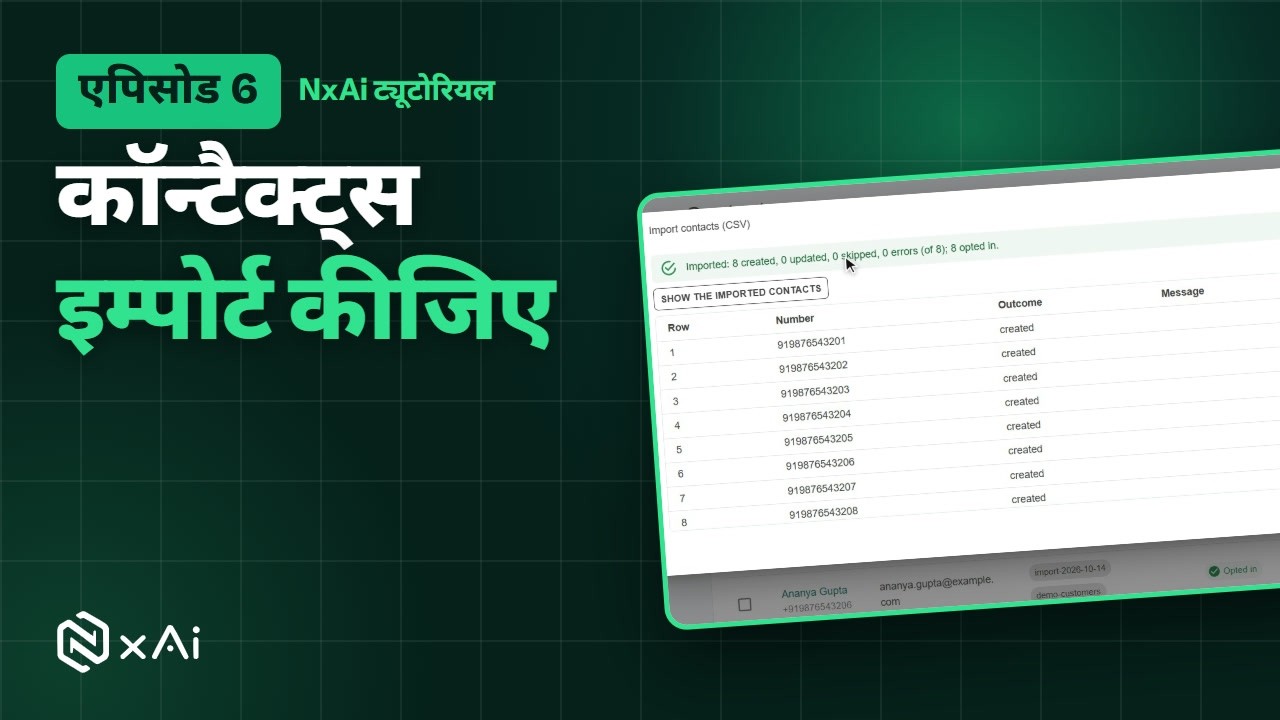
Click Import. The report shows how many contacts were created, updated, skipped, or had errors. A number that's already in your contacts is updated, never added twice. Click Show the imported contacts to see the batch.
1:57Marketing consent
Only opted-in contacts receive marketing messages. Anyone who replies unsubscribe is marked as stopped, and stays stopped until they reply subscribe. To opt in a group of contacts later, tick them, and click Opt in in the bar that appears.
2:15Next episode
In the next episode, we'll organise your contacts with groups and custom fields. If this video helped, subscribe, and see you in the next one!
ट्रांसक्रिप्ट
0:00स्वागत
NxAi ट्यूटोरियल्स में आपका स्वागत है! इस एपिसोड में आप अपने कस्टमर्स को NxAi में जोड़ेंगे, एक एक करके या पूरी लिस्ट एक साथ।
0:11इस एपिसोड में
हम कॉन्टैक्ट्स पेज देखेंगे, एक कॉन्टैक्ट जोड़ेंगे, एक CSV फ़ाइल इम्पोर्ट करेंगे, और देखेंगे कि मार्केटिंग की सहमति कैसे काम करती है।
0:23कॉन्टैक्ट्स पेज
मेन्यू में Contacts और फिर All contacts खोलिए। यहाँ वे सब लोग हैं जिन्हें आपका वर्कस्पेस WhatsApp पर मैसेज भेज सकता है। जो लोग आपको मैसेज करते हैं, वे यहाँ अपने आप जुड़ जाते हैं। क्विक फ़िल्टर्स दिखाते हैं कि किसने ऑप्ट इन किया है, किसने नहीं, और किसने मार्केटिंग मैसेज बंद किए हैं।
0:43कॉन्टैक्ट जोड़िए
किसी को ख़ुद जोड़ने के लिए New contact पर क्लिक कीजिए। उनका WhatsApp नंबर कंट्री कोड के साथ, नाम और ईमेल डालिए, चाहें तो एक टैग जोड़िए, और Save पर क्लिक कीजिए।
0:59अपनी CSV फ़ाइल तैयार कीजिए
बहुत सारे कस्टमर्स को एक साथ जोड़ने के लिए एक CSV फ़ाइल तैयार कीजिए। उसमें सबसे ऊपर हेडर रो हो, एक कॉलम में हर WhatsApp नंबर कंट्री कोड के साथ, और आपके पास जो भी डिटेल्स हों, जैसे नाम, ईमेल या शहर।
1:17इम्पोर्ट और कॉलम मिलाना
Import पर क्लिक कीजिए, और अपनी CSV फ़ाइल चुनिए। फिर उसके कॉलम मिलाइए: WhatsApp नंबर, नाम, ईमेल और टैग्स। अगर आपने अपने कॉन्टैक्ट फ़ील्ड्स बनाए हैं, तो वे भी यहीं दिखते हैं।
1:33बैच पर टैग और ऑप्ट इन
नीचे NxAi पूरे बैच पर आज की तारीख़ का टैग लगा देता है, और आप अपना टैग भी जोड़ सकते हैं, ताकि बाद में इन लोगों को आसानी से ढूँढ सकें। अगर इन्होंने आपसे WhatsApp मैसेज पाने की सहमति दी है, तो बॉक्स पर टिक करके इन्हें ऑप्ट इन कीजिए। NxAi हर किसी के लिए सहमति का रिकॉर्ड रखता है।
1:57इम्पोर्ट रिपोर्ट और डुप्लिकेट
Import पर क्लिक कीजिए। रिपोर्ट बताती है कि कितने कॉन्टैक्ट्स बने, कितने अपडेट हुए, कितने छूटे, और किनमें गलती थी। जो नंबर पहले से आपके कॉन्टैक्ट्स में है, वह अपडेट होता है, दोबारा नहीं जुड़ता। इस बैच को देखने के लिए Show the imported contacts पर क्लिक कीजिए।
2:17मार्केटिंग सहमति
मार्केटिंग मैसेज सिर्फ़ ऑप्ट इन किए गए कॉन्टैक्ट्स को जाते हैं। जो unsubscribe लिखकर जवाब देता है, उसके मैसेज बंद हो जाते हैं, और तब तक बंद रहते हैं जब तक वह subscribe नहीं लिखता। बाद में कई कॉन्टैक्ट्स को एक साथ ऑप्ट इन करने के लिए उन पर टिक कीजिए, और ऊपर दिखने वाली पट्टी में Opt in पर क्लिक कीजिए।
2:42अगला एपिसोड
अगले एपिसोड में हम ग्रुप्स और कस्टम फ़ील्ड्स से आपके कॉन्टैक्ट्स व्यवस्थित करेंगे। अगर यह वीडियो काम का लगा, तो चैनल सब्सक्राइब कीजिए, मिलते हैं अगले एपिसोड में!

Ready to try it on your own number?
Start free and follow along. We help you set up the first bot, template and campaign.
3 months free · No credit card required · Free onboarding