Meta business verificationMeta बिज़नेस वेरिफ़िकेशन
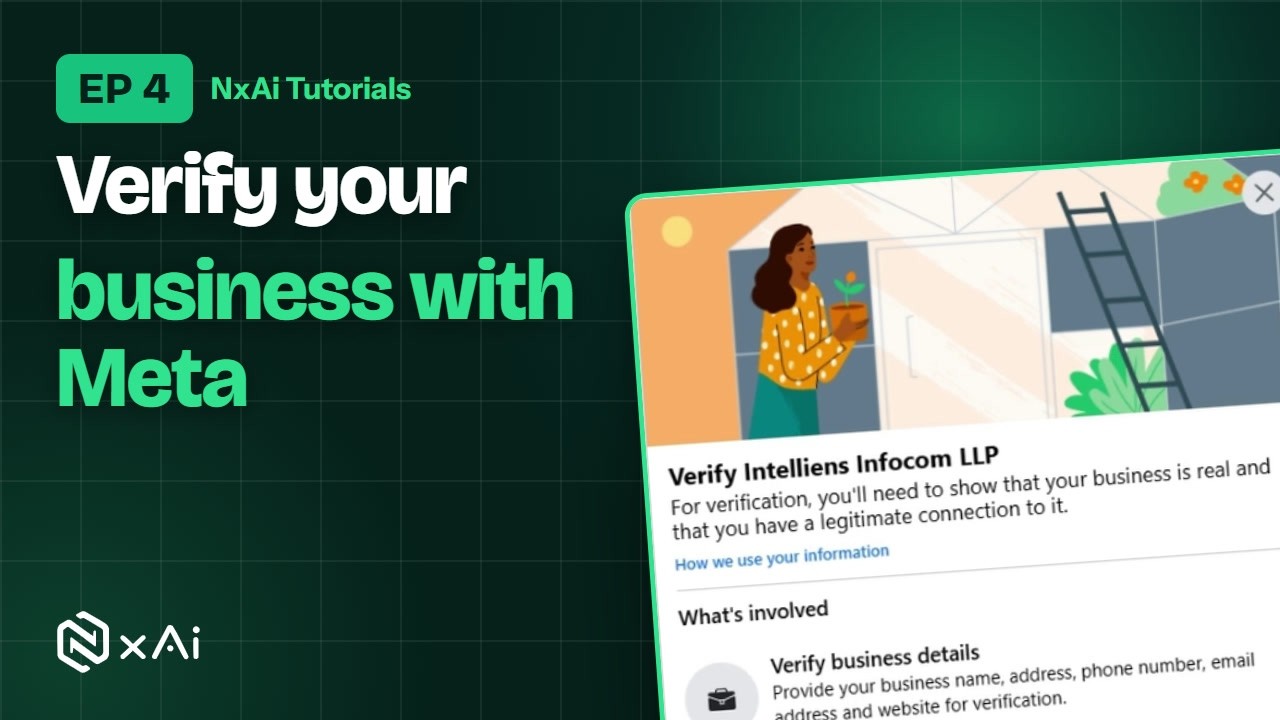
Verify your business with Meta so your number can message more customers a day, then complete your profiles.
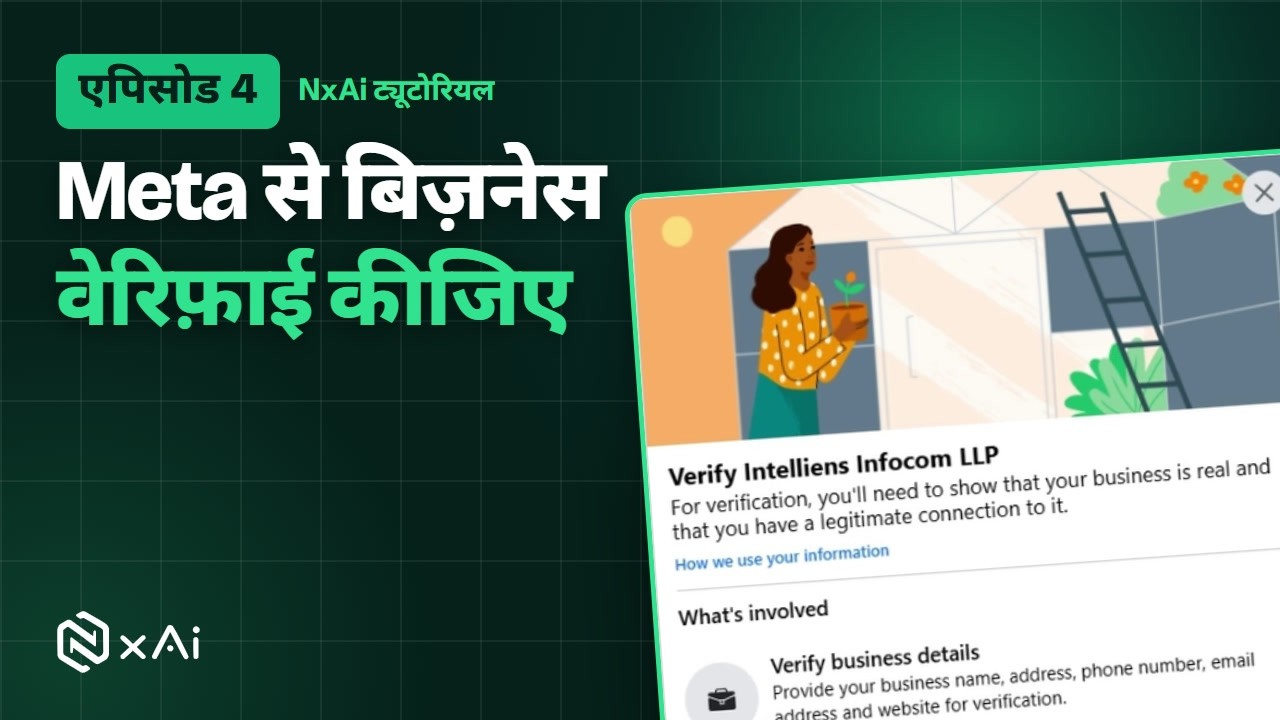
Meta से बिज़नेस वेरिफ़ाई कीजिए ताकि नंबर रोज़ ज़्यादा कस्टमर्स को मैसेज भेज सके, फिर प्रोफ़ाइल पूरी कीजिए।
Transcript
0:00Welcome
Welcome to NxAi tutorials! In this episode, you'll verify your business with Meta, and complete your company and WhatsApp profiles.
0:10What you'll do
We'll see why verification matters, verify your business in Meta step by step, and then set up your company profile and WhatsApp profile in NxAi.
0:21Why verify your business
In episode three, NxAi's Health panel showed that the business has not passed business verification. Until Meta verifies it, you can message only a limited number of customers a day. So let's verify it.
0:34Meta Business settings
Open Meta Business settings at business.facebook.com. Under Business info, you'll see your business details and the verification status: Unverified.
0:46Security Centre → Start verification
Go to Security Centre. Under Business verification, choose your use case, Setting up a WhatsApp Business account, and click Start verification.
0:58What's involved
Meta shows what's involved: verify your business details, confirm your connection to the business, and upload documents if needed. Click Get started.
1:10Business type & registration
Select your business type, for example a partnership or a private company, and click Next. Then tell Meta whether your business is officially registered.
1:30Business details
Add your business details: your GSTIN, Udyam, PAN or registration number, your business name exactly as it appears on your documents, your address, phone number, and website.
1:46Match your business in public records
After a quick security check, Meta searches public records. Pick the record that matches your business, or choose My business isn't listed. Then review the details, and click Next.
2:00Confirm your connection
Next, confirm your connection to the business. Choose Identity verification, and select the person whose ID you'll upload.
2:15Upload your ID
Choose the type of ID, like a passport, driving licence, or Voter ID, and upload a clear photo of it. Meta usually reviews it within 48 hours, and notifies you once it has decided.
2:38In review
Your verification now shows as In review. Once Meta approves it, NxAi's Health panel updates, and your messaging limit can go up.
2:47Verified: limit up to 2,000 a day
And here's NxAi once Meta has verified the business. The Health panel now shows Business verification: verified, and Messaging: available. The messaging limit has gone up from 250 to 2,000 customers a day.
3:05NxAi company profile
Now, your company profile in NxAi. Open Settings, then Company profile. Check your company name, description, country and state, company size, industry, website, and time zone.
3:21Billing details for GST invoices
Below, under Billing details for GST invoices, click Edit. Choose a business invoice with your GSTIN, so you can claim input tax credit, or an individual invoice. Then add the billing name and address.
3:35WhatsApp business profile
Finally, your WhatsApp profile. In WhatsApp settings, open the Profile tab. Here is what customers see when they tap your name: About, industry, description, address, email, and websites. Click Edit profile to fill them in. Changes go live on WhatsApp straight away, and on the right you can see how customers see it.
3:57Display name
Your display name is the business name shown in chats. To change it, type the new name and click Send for review. Meta reviews every change, so use your real business name. You can change it up to ten times in thirty days.
4:12Next episode
In the next episode, we'll look at plans and billing in NxAi. If this video helped, subscribe, and see you in the next one!
ट्रांसक्रिप्ट
0:00स्वागत
NxAi ट्यूटोरियल्स में आपका स्वागत है! इस एपिसोड में आप Meta से अपना बिज़नेस वेरिफ़ाई करेंगे, और अपनी कंपनी और WhatsApp प्रोफ़ाइल पूरी करेंगे।
0:12इस एपिसोड में
हम देखेंगे कि वेरिफ़िकेशन क्यों ज़रूरी है, Meta में स्टेप बाय स्टेप अपना बिज़नेस वेरिफ़ाई करेंगे, और फिर NxAi में अपनी कंपनी प्रोफ़ाइल और WhatsApp प्रोफ़ाइल सेट करेंगे।
0:27वेरिफ़िकेशन क्यों ज़रूरी है
एपिसोड तीन में NxAi के Health पैनल ने दिखाया था कि बिज़नेस वेरिफ़िकेशन अभी पास नहीं हुआ है। जब तक Meta इसे वेरिफ़ाई नहीं करता, आप दिन में सीमित कस्टमर्स को ही मैसेज भेज सकते हैं। तो चलिए, इसे वेरिफ़ाई करते हैं।
0:44Meta Business सेटिंग्स
business.facebook.com पर Meta Business सेटिंग्स खोलिए। Business info में आपके बिज़नेस की डिटेल्स और वेरिफ़िकेशन स्टेटस दिखेगा: Unverified।
0:55Security Centre → Start verification
Security Centre में जाइए। Business verification में अपना यूज़ केस चुनिए — Setting up a WhatsApp Business account — और Start verification पर क्लिक कीजिए।
1:07इसमें क्या-क्या होगा
Meta बताता है कि इसमें क्या-क्या होगा: बिज़नेस की डिटेल्स वेरिफ़ाई करना, बिज़नेस से अपना कनेक्शन कन्फ़र्म करना, और ज़रूरत हो तो डॉक्यूमेंट्स अपलोड करना। Get started पर क्लिक कीजिए।
1:22बिज़नेस टाइप और रजिस्ट्रेशन
अपने बिज़नेस का टाइप चुनिए — जैसे पार्टनरशिप या प्राइवेट कंपनी — और Next पर क्लिक कीजिए। फिर Meta को बताइए कि आपका बिज़नेस आधिकारिक रूप से रजिस्टर्ड है या नहीं।
1:43बिज़नेस डिटेल्स
अपने बिज़नेस की डिटेल्स डालिए: GSTIN, उद्यम, PAN या रजिस्ट्रेशन नंबर, बिज़नेस का नाम बिल्कुल वैसा ही जैसा आपके डॉक्यूमेंट्स पर है, आपका पता, फ़ोन नंबर और वेबसाइट।
1:58पब्लिक रिकॉर्ड्स में अपना बिज़नेस
एक छोटे-से सिक्योरिटी चेक के बाद Meta पब्लिक रिकॉर्ड्स में खोजता है। जो रिकॉर्ड आपके बिज़नेस से मिलता है उसे चुनिए, या My business isn't listed चुनिए। फिर डिटेल्स रिव्यू करके Next पर क्लिक कीजिए।
2:13अपना कनेक्शन कन्फ़र्म कीजिए
अब बिज़नेस से अपना कनेक्शन कन्फ़र्म कीजिए। Identity verification चुनिए, और वह व्यक्ति चुनिए जिसकी ID आप अपलोड करेंगे।
2:28अपनी ID अपलोड कीजिए
ID का टाइप चुनिए — जैसे पासपोर्ट, ड्राइविंग लाइसेंस या वोटर ID — और उसकी साफ़ फ़ोटो अपलोड कीजिए। Meta आमतौर पर 48 घंटे के अंदर इसे रिव्यू करता है, और फ़ैसला होते ही आपको बता देता है।
2:51रिव्यू में
अब आपका वेरिफ़िकेशन In review दिखेगा। Meta के अप्रूव करते ही NxAi का Health पैनल अपडेट हो जाएगा, और आपकी मैसेजिंग लिमिट बढ़ सकती है।
3:02वेरिफ़ाइड: लिमिट बढ़कर 2,000 प्रतिदिन
और Meta के बिज़नेस वेरिफ़ाई करने के बाद NxAi ऐसा दिखता है। Health पैनल में अब Business verification: verified और Messaging: available दिखता है। मैसेजिंग लिमिट 250 से बढ़कर 2,000 कस्टमर्स प्रतिदिन हो गई है।
3:19NxAi कंपनी प्रोफ़ाइल
अब NxAi में आपकी कंपनी प्रोफ़ाइल। Settings में Company profile खोलिए। अपनी कंपनी का नाम, डिस्क्रिप्शन, देश और राज्य, कंपनी का साइज़, इंडस्ट्री, वेबसाइट और टाइम ज़ोन जाँच लीजिए।
3:36GST इनवॉइस की बिलिंग डिटेल्स
नीचे Billing details for GST invoices में Edit पर क्लिक कीजिए। GSTIN वाला बिज़नेस इनवॉइस चुनिए, ताकि आप इनपुट टैक्स क्रेडिट ले सकें, या फिर इंडिविजुअल इनवॉइस। फिर बिलिंग नाम और पता जोड़िए।
3:53WhatsApp बिज़नेस प्रोफ़ाइल
और आख़िर में, आपकी WhatsApp प्रोफ़ाइल। WhatsApp settings में Profile टैब खोलिए। आपके नाम पर टैप करने पर कस्टमर्स को यही दिखता है: About, इंडस्ट्री, डिस्क्रिप्शन, पता, ईमेल और वेबसाइट्स। इन्हें भरने के लिए Edit profile पर क्लिक कीजिए। बदलाव WhatsApp पर तुरंत लाइव हो जाते हैं, और दाईं ओर आप देख सकते हैं कि कस्टमर्स को यह कैसा दिखेगा।
4:18डिस्प्ले नेम
डिस्प्ले नेम वह बिज़नेस नाम है जो चैट्स में दिखता है। इसे बदलने के लिए नया नाम टाइप कीजिए और Send for review पर क्लिक कीजिए। Meta हर बदलाव को रिव्यू करता है, इसलिए अपने बिज़नेस का असली नाम ही रखिए। आप तीस दिनों में दस बार तक नाम बदल सकते हैं।
4:36अगला एपिसोड
अगले एपिसोड में हम NxAi में प्लान और बिलिंग देखेंगे। अगर यह वीडियो काम का लगा, तो चैनल सब्सक्राइब कीजिए — मिलते हैं अगले एपिसोड में!

Ready to try it on your own number?
Start free and follow along. We help you set up the first bot, template and campaign.
3 months free · No credit card required · Free onboarding