Build a chatbot, no codeचैटबॉट बनाइए, बिना कोड
Start on a keyword, add buttons, give each its own path, and hand the chat to your team.
कीवर्ड से शुरू कीजिए, बटन जोड़िए, हर बटन को अपना रास्ता दीजिए, और चैट टीम को सौंपिए।

Transcript
0:00Welcome
Welcome to NxAi tutorials! In this episode, you'll build a chatbot that answers your customers on WhatsApp, with no coding.
0:10What you'll do
We'll choose how the bot starts, add buttons, give each button its own path, and check it's ready to publish.
0:19Chatbot builder
Under Chatbots and AI, open Chatbot builder. Your chatbots are listed here, with their status and how they start.
0:28New chatbot & keyword start
Click New chatbot. On the left are the steps you can add: conversation, logic and actions. Name your bot, then click the Start step to choose when it begins. Here, when a customer sends hi, hello or menu.
0:45Buttons & connecting steps
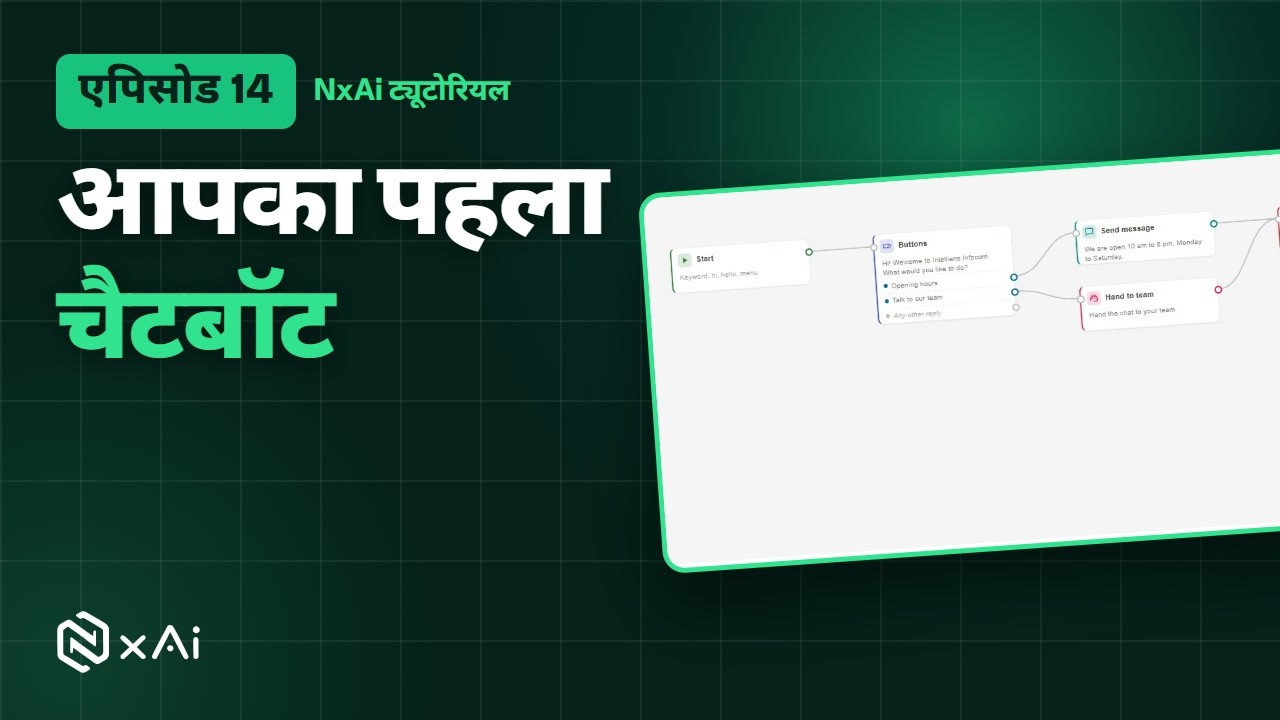
Add a Buttons step. Write your question, and name the buttons, up to three. Here: Opening hours, and Talk to our team. Then connect the steps: click the round handle on Start, and then the Buttons step.
1:02A path for each button
Each button gets its own path. Add a Send message step with your opening hours, and connect the Opening hours button to it. Then add Hand to team for the second button, so the chat lands in your team inbox. Tidy up lines everything up.
1:21Check, save & publish
Save the draft anytime. Before you can publish, NxAi checks the flow. Here, two steps lead nowhere, so add an End step and connect both paths to it. Now it says Ready. Save again, and when you're happy, click Publish to switch the bot on.
1:46More to try
A few more things to try. Draft with AI builds a first version from your description. Ask a question and Save field collect details. Branch and Wait add logic. And every chatbot has a report showing how people move through it.
2:01Next episode
In the next episode, we'll build WhatsApp Forms, to collect details right inside the chat. If this video helped, subscribe, and see you in the next one!
ट्रांसक्रिप्ट
0:00स्वागत
NxAi ट्यूटोरियल्स में आपका स्वागत है! इस एपिसोड में आप एक चैटबॉट बनाएँगे जो WhatsApp पर आपके कस्टमर्स को जवाब देता है, बिना कोडिंग के।
0:12इस एपिसोड में
हम तय करेंगे कि बॉट कैसे शुरू हो, बटन्स जोड़ेंगे, हर बटन को उसका अपना रास्ता देंगे, और देखेंगे कि वह पब्लिश के लिए तैयार है।
0:23Chatbot builder
Chatbots & AI में Chatbot builder खोलिए। आपके चैटबॉट्स यहाँ दिखते हैं, उनके स्टेटस और शुरू होने के तरीके के साथ।
0:35नया चैटबॉट और कीवर्ड
New chatbot पर क्लिक कीजिए। बाईं ओर वे स्टेप्स हैं जो आप जोड़ सकते हैं: बातचीत, लॉजिक और ऐक्शन्स। अपने बॉट को नाम दीजिए, फिर Start स्टेप पर क्लिक करके तय कीजिए कि वह कब शुरू हो। यहाँ, जब कस्टमर hi, hello या menu भेजे।
0:54बटन्स और स्टेप्स जोड़ना
एक Buttons स्टेप जोड़िए। अपना सवाल लिखिए, और बटन्स को नाम दीजिए, तीन तक। यहाँ: Opening hours, और Talk to our team। फिर स्टेप्स जोड़िए: Start के गोल हैंडल पर क्लिक कीजिए, और फिर Buttons स्टेप पर।
1:11हर बटन का रास्ता
हर बटन का अपना रास्ता होता है। अपने खुलने के समय के साथ एक Send message स्टेप जोड़िए, और Opening hours बटन को उससे जोड़िए। फिर दूसरे बटन के लिए Hand to team जोड़िए, ताकि चैट आपके टीम इनबॉक्स में आ जाए। Tidy up सब कुछ सलीके से जमा देता है।
1:32जाँच, सेव और पब्लिश
ड्राफ़्ट कभी भी सेव कीजिए। पब्लिश से पहले NxAi फ़्लो जाँचता है। यहाँ दो स्टेप्स कहीं नहीं जाते, इसलिए एक End स्टेप जोड़िए और दोनों रास्तों को उससे जोड़िए। अब यह Ready दिखाता है। फिर से सेव कीजिए, और जब आप संतुष्ट हों, तो बॉट चालू करने के लिए Publish पर क्लिक कीजिए।
1:56और भी आज़माइए
आज़माने के लिए कुछ और चीज़ें। Draft with AI आपके बताए अनुसार पहला वर्ज़न बना देता है। Ask a question और Save field डिटेल्स इकट्ठा करते हैं। Branch और Wait लॉजिक जोड़ते हैं। और हर चैटबॉट की एक रिपोर्ट होती है, जो दिखाती है कि लोग उसमें कैसे आगे बढ़ते हैं।
2:15अगला एपिसोड
अगले एपिसोड में हम WhatsApp फ़ॉर्म्स बनाएँगे, जिनसे चैट के अंदर ही डिटेल्स ली जाती हैं। अगर यह वीडियो काम का लगा, तो चैनल सब्सक्राइब कीजिए, मिलते हैं अगले एपिसोड में!

Ready to try it on your own number?
Start free and follow along. We help you set up the first bot, template and campaign.
3 months free · No credit card required · Free onboarding